Removing the Microphone from the Wyze Cam v2
Disclaimer: This process will void your warranty and carries a risk of permanently damaging your device. Proceed at your own risk.
I have spoken to many people and read on the Wyze Cam forum that users are often unconcerned with the security and privacy of their Wyze Cams and other low-cost home security cameras. This is often because they point their cameras toward parts of their home they feel aren’t private, such as through a window toward their front door or driveway.
However, many do not realize that the Wyze Cam microphone is omnidirectional. The microphone is not physically attached to the mic hole on the front of the camera; instead, it is attached to a PCB suspended freely within the camera housing. This design allows it to pick up audio from virtually all directions and prevents you from effectively muting it by simply taping over the mic hole. I attempted to cover the hole before deciding to physically remove the component.
Wyze does offer an in-app solution to disable sound recording:
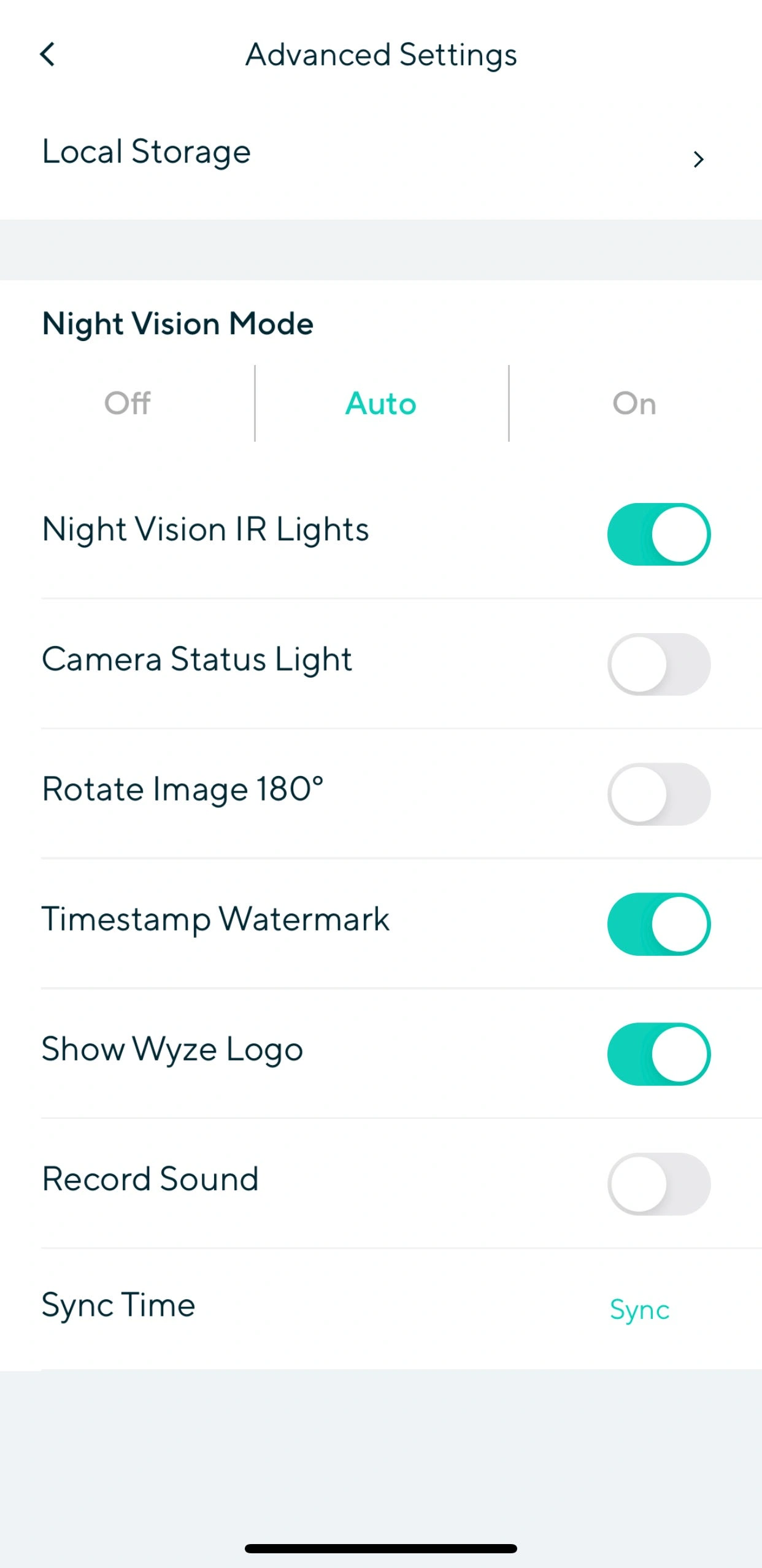
However, this option has significant limitations. It does not prevent live audio streaming, nor is the setting password-protected beyond the initial account login. If your Wyze account were compromised, an intruder could easily re-enable the microphone. Furthermore, relying on a software toggle requires trusting the security of the Wyze software and servers.
Disassembling the Camera
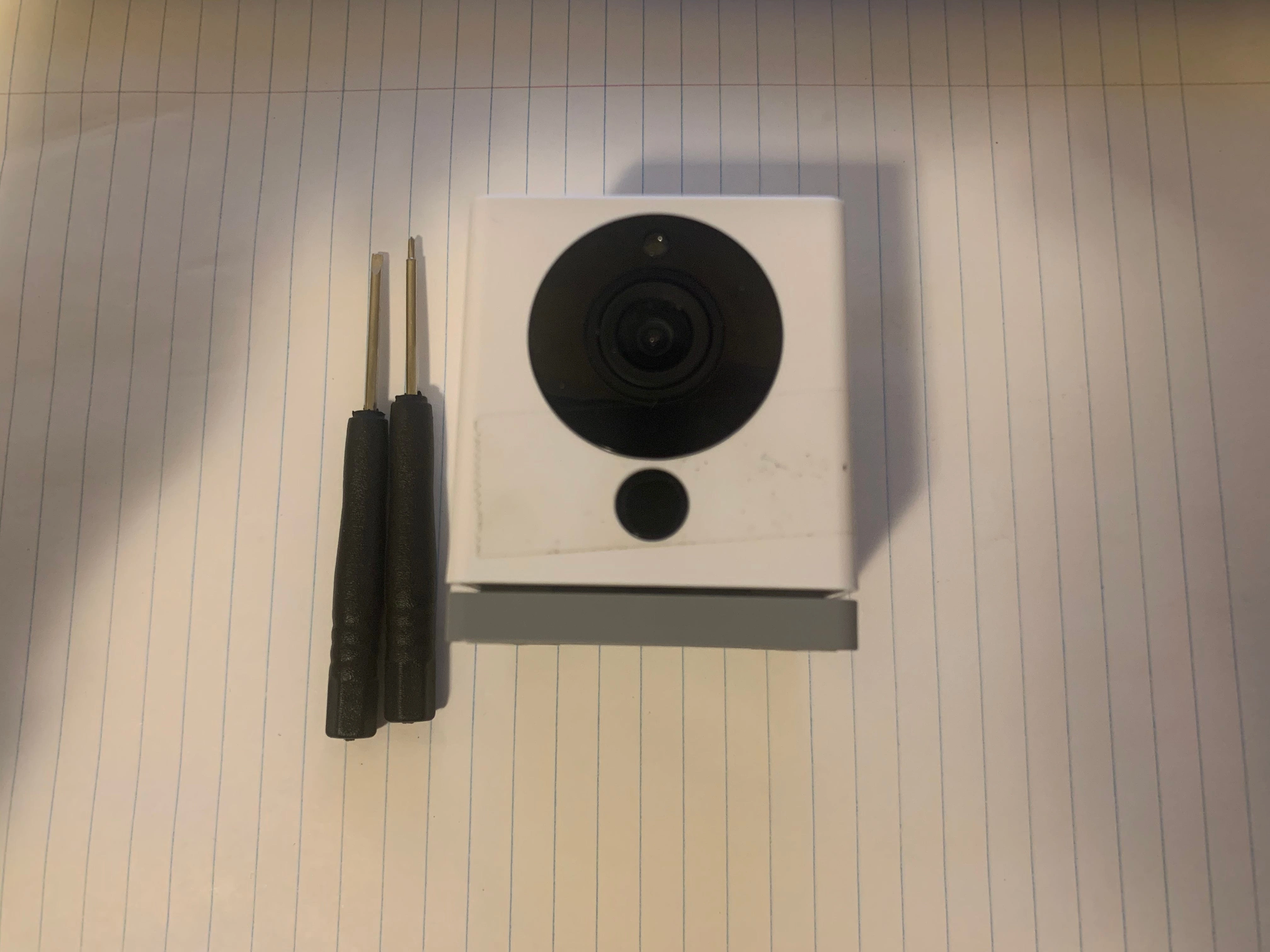
You will need the following tools:
- A flat-head screwdriver to pry the microphone off the PCB.
- A Phillips head screwdriver with a shaft narrow enough to reach the recessed internal screw.
- A Wyze Cam to disassemble.
Step 1: Remove the Base
We will start by flipping the Wyze Cam over and moving the base (grey part) out of the way to gain access to its two bottom screws.
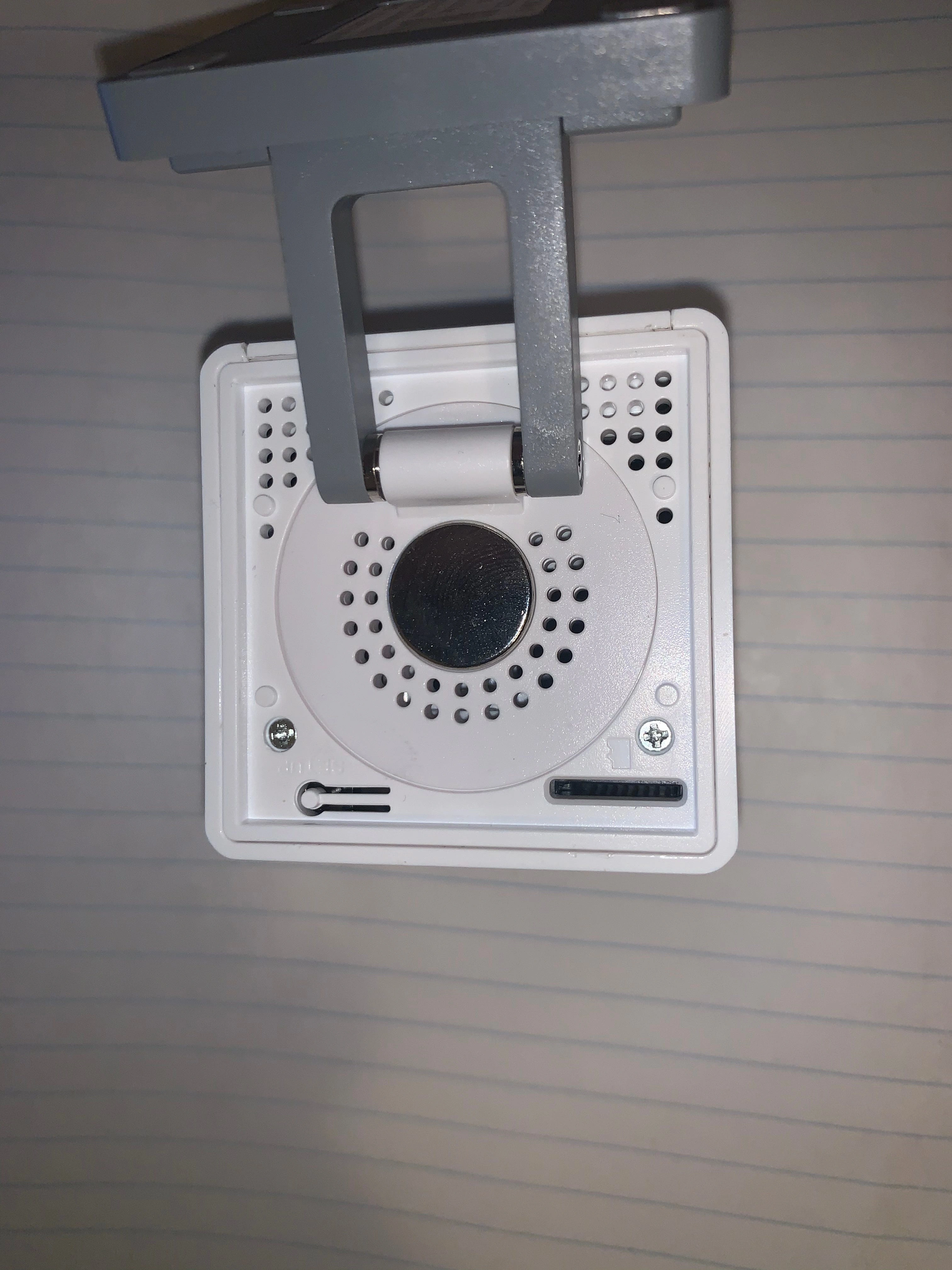
After removing the screws, rotate the base (the grey part) toward the side where the screws were located.
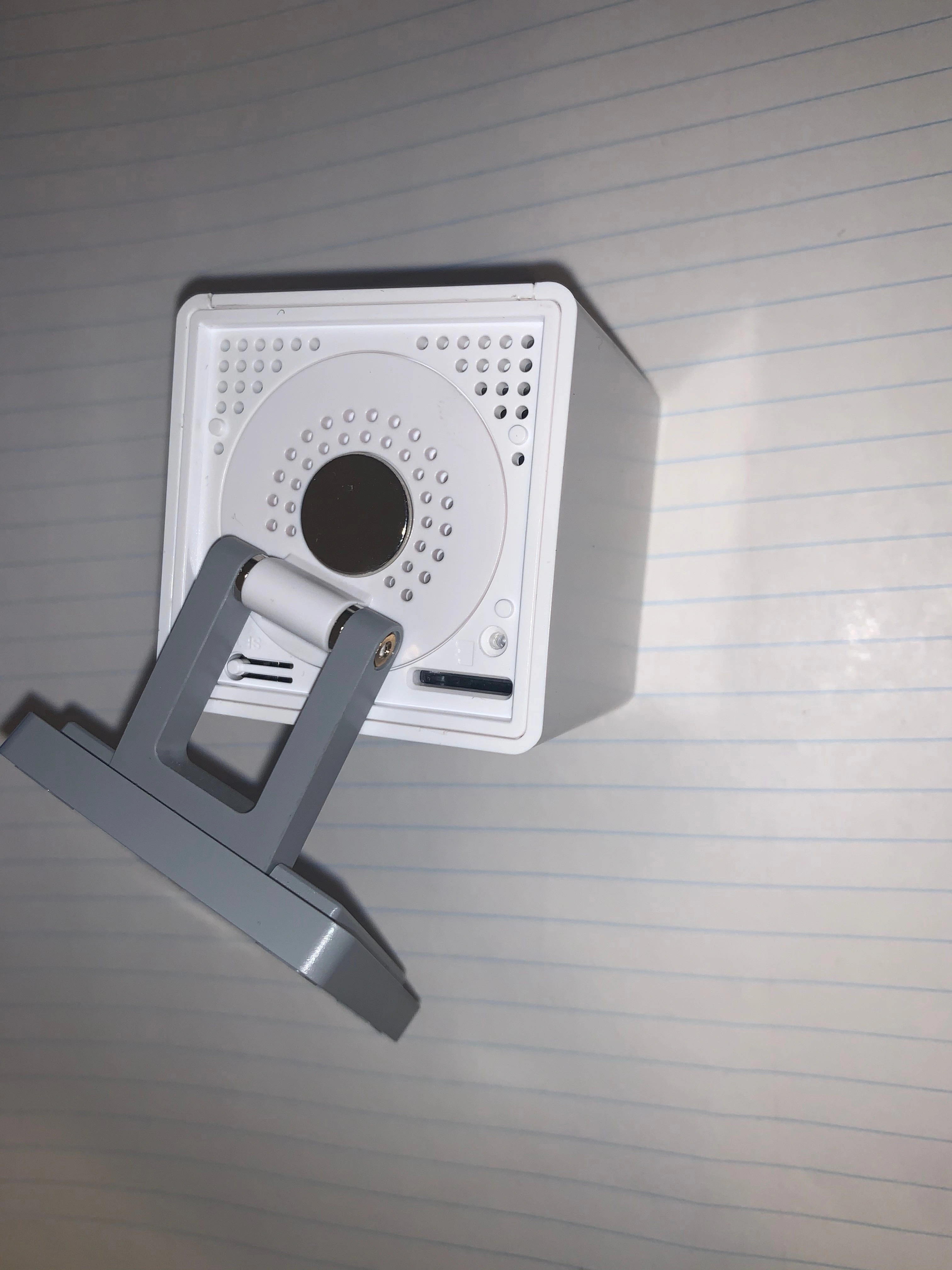
Use the base to leverage the bottom plate off. This works because one side of the base is secured with screws, while the other uses plastic clips.
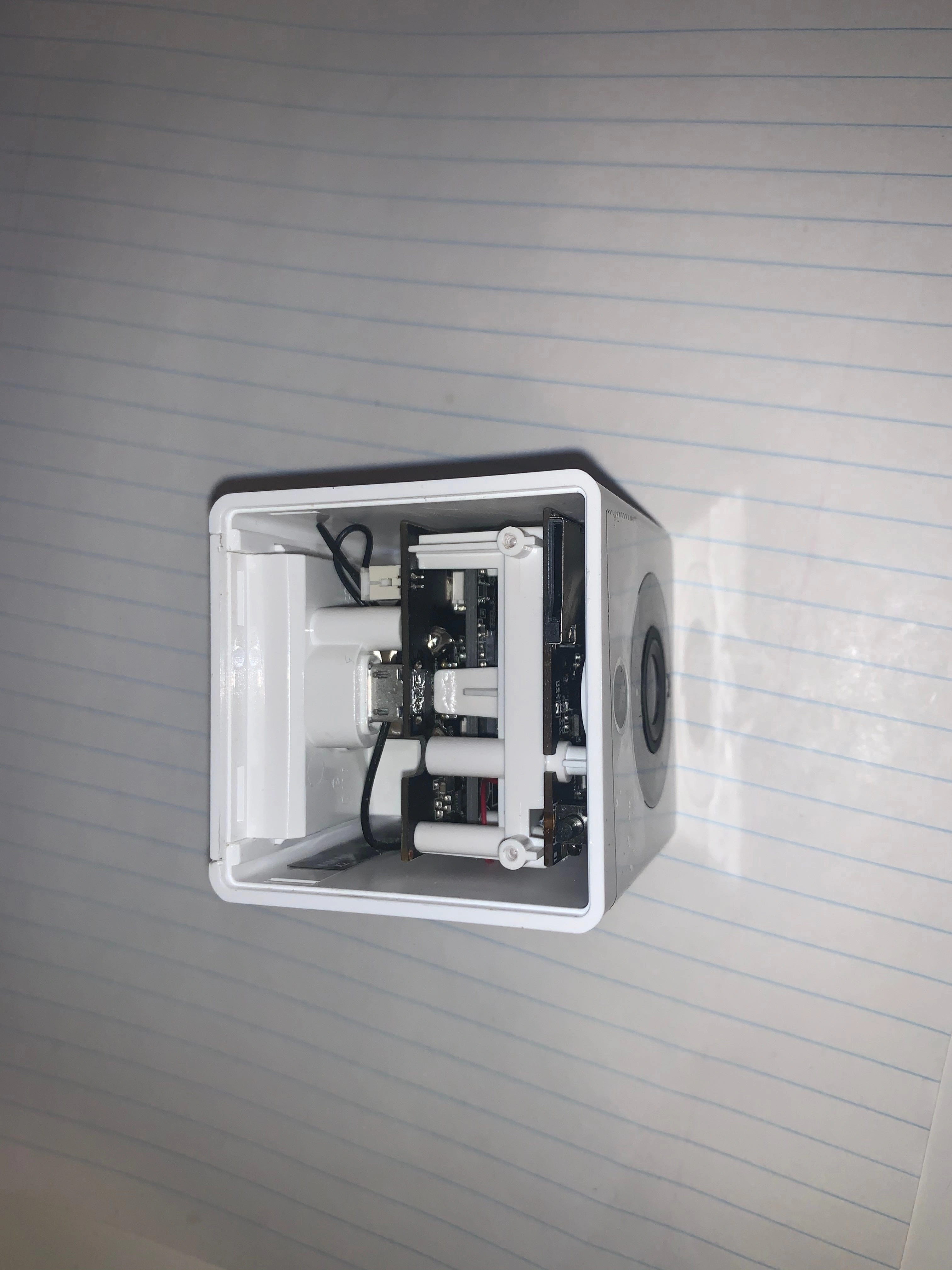
Step 2: Remove the Backplate
With the base removed, the next step is to remove the camera backplate. This piece is held in place by plastic clips. I found it easiest to push the backplate inward with one hand while pulling one of the sides away from the camera housing with the other. This step may require more force than expected.
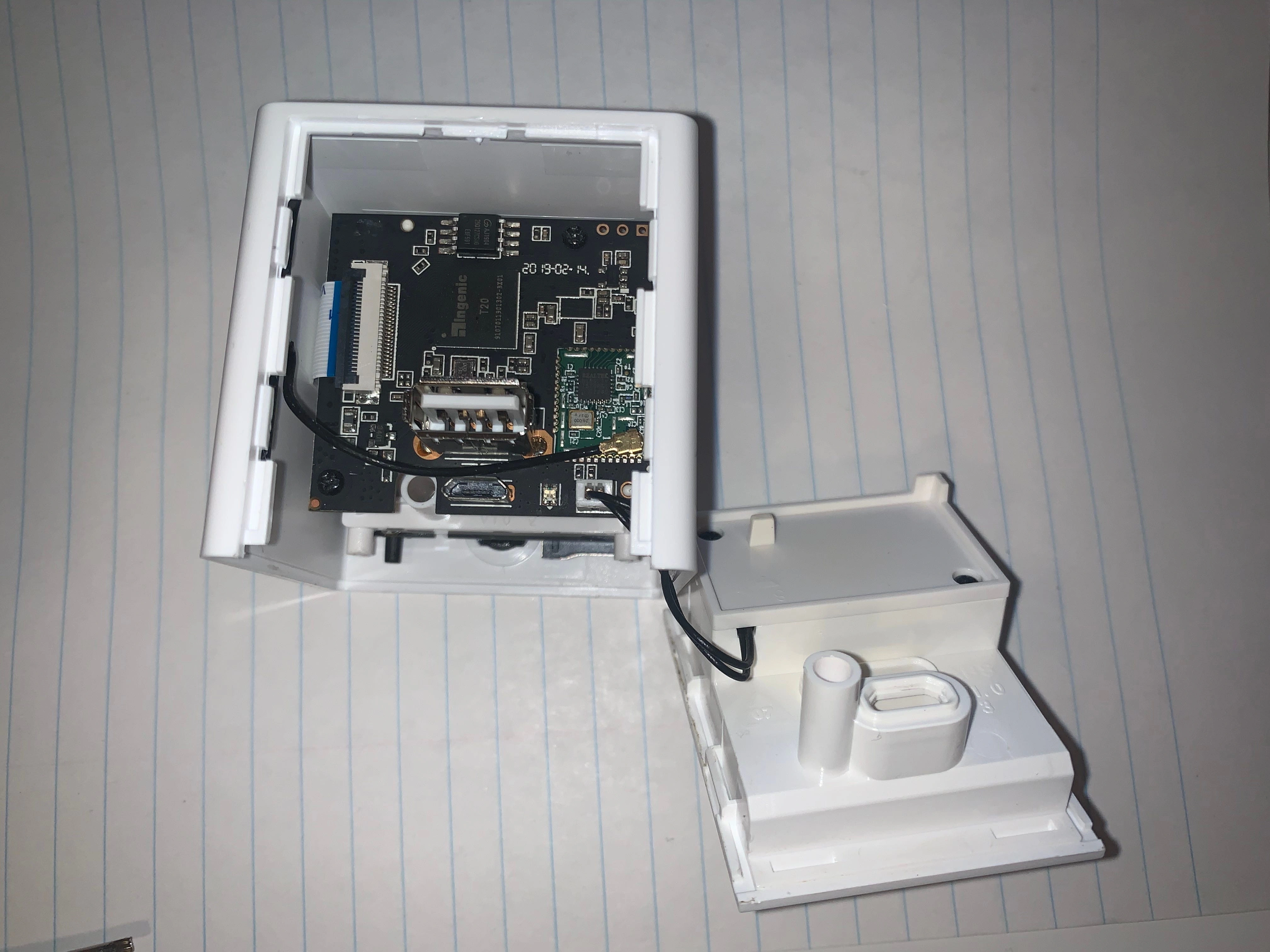
Here is the rear of the camera with the backplate removed. The wires going from the camera to the backplate are for the speaker. The wire running to the left is a Wi-Fi antenna glued to the inside of the housing.
Step 3: Remove Internal Screw
Remove the screw located inside the white plastic tube (next to the mini USB port), shown at the bottom of the photo below. This is the only screw holding the camera’s internal components in place.
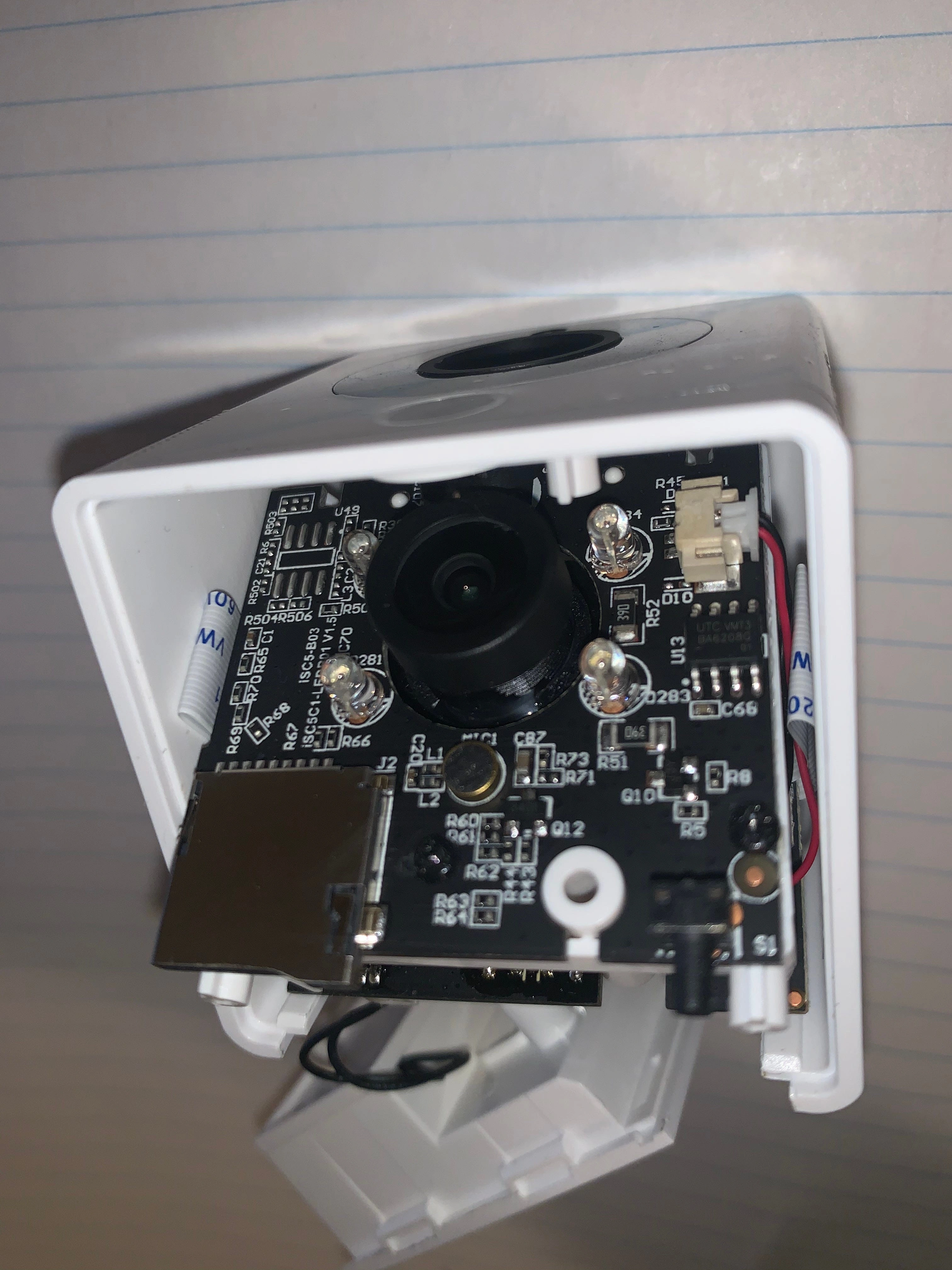
Step 4: Remove the Microphone
With the screw removed, we can partially lift the internal components out of the housing. Be careful, as the Wi-Fi antenna cable is still connected. Locate the gold-colored microphone labeled MIC1 (visible in the photo below, just under the lens assembly). Use a flat-head screwdriver to pry it off.
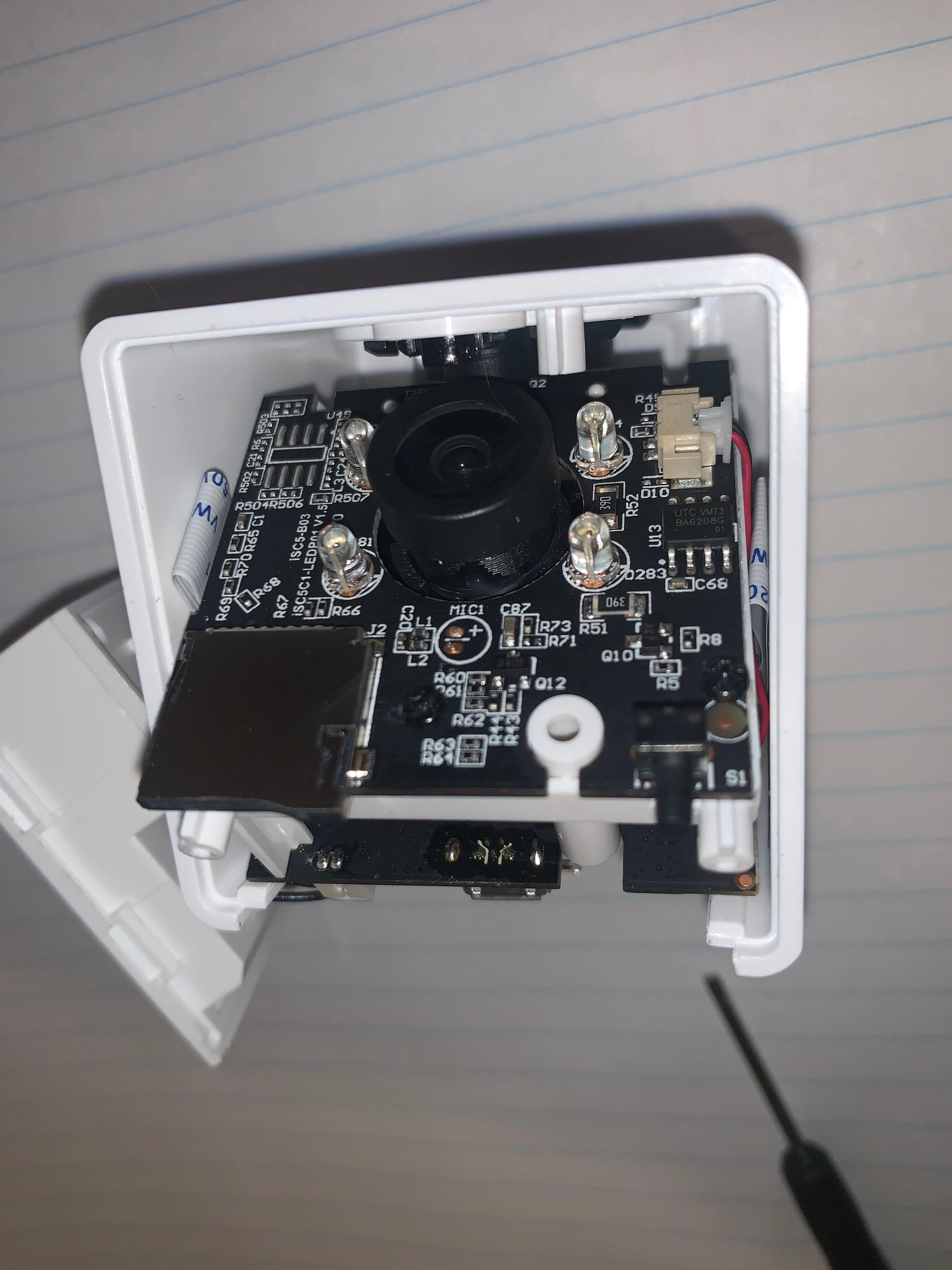
The photo above shows the PCB with the microphone removed. The two exposed contact points are where the microphone was originally soldered. Now all that’s left to do is follow these steps in reverse and reassemble the camera.
Conclusion
Removing the microphone will permanently disable sound recording and live audio listening. Consequently,features that rely on audio, such as sound-triggered event recording and Smoke/CO alarm detection will no longer work.